Affiliate Disclosure: Some links on this page earn us a commission. Our editorial judgments are independent.
CrushOn AI Not Working: Step-by-Step Fixes for Common Problems
CrushOn AI issues typically resolve within a few steps. The most common cause of apparent platform failures — chat that appears working but stops responding — is usually an exhausted message limit, not a technical error. Start with the quick checks, then work through platform-specific fixes if needed.
Quick Checks First
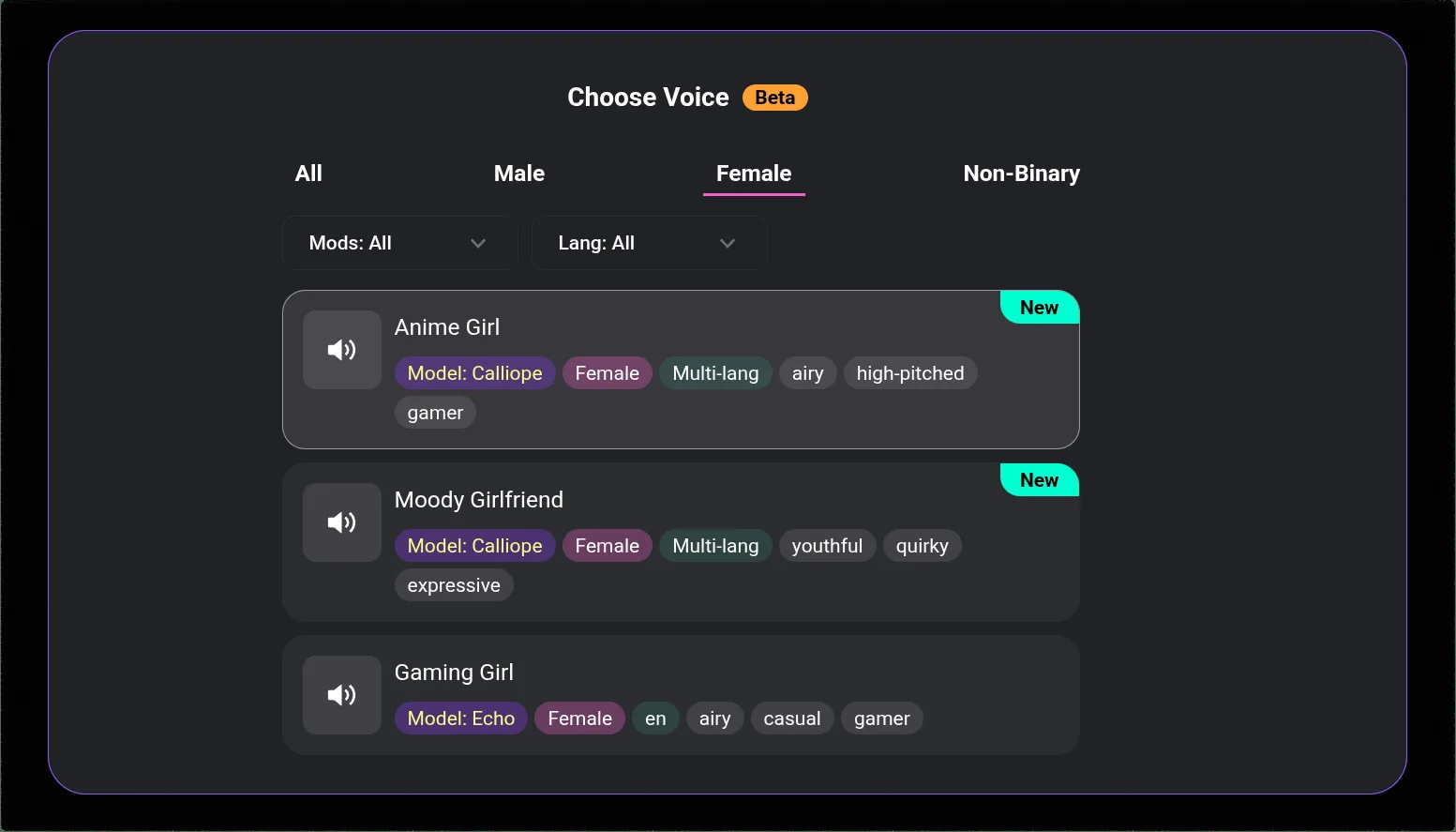
Before any detailed troubleshooting:
1. Check your message limit. Free tier: 50/day. Standard: 2,000/month. If you have hit your limit, the chat interface looks normal but generates no responses. Check your remaining allocation in account settings → usage or subscription section.
2. Check platform status. CrushOn AI outages affect all users simultaneously. Check:
- Twitter/X @CrushOnAI for downtime announcements
- CrushOn AI Discord status channel
- isitdownrightnow.com for CrushOn AI
If there is an outage, wait. No client-side troubleshooting helps.
Chat Problems
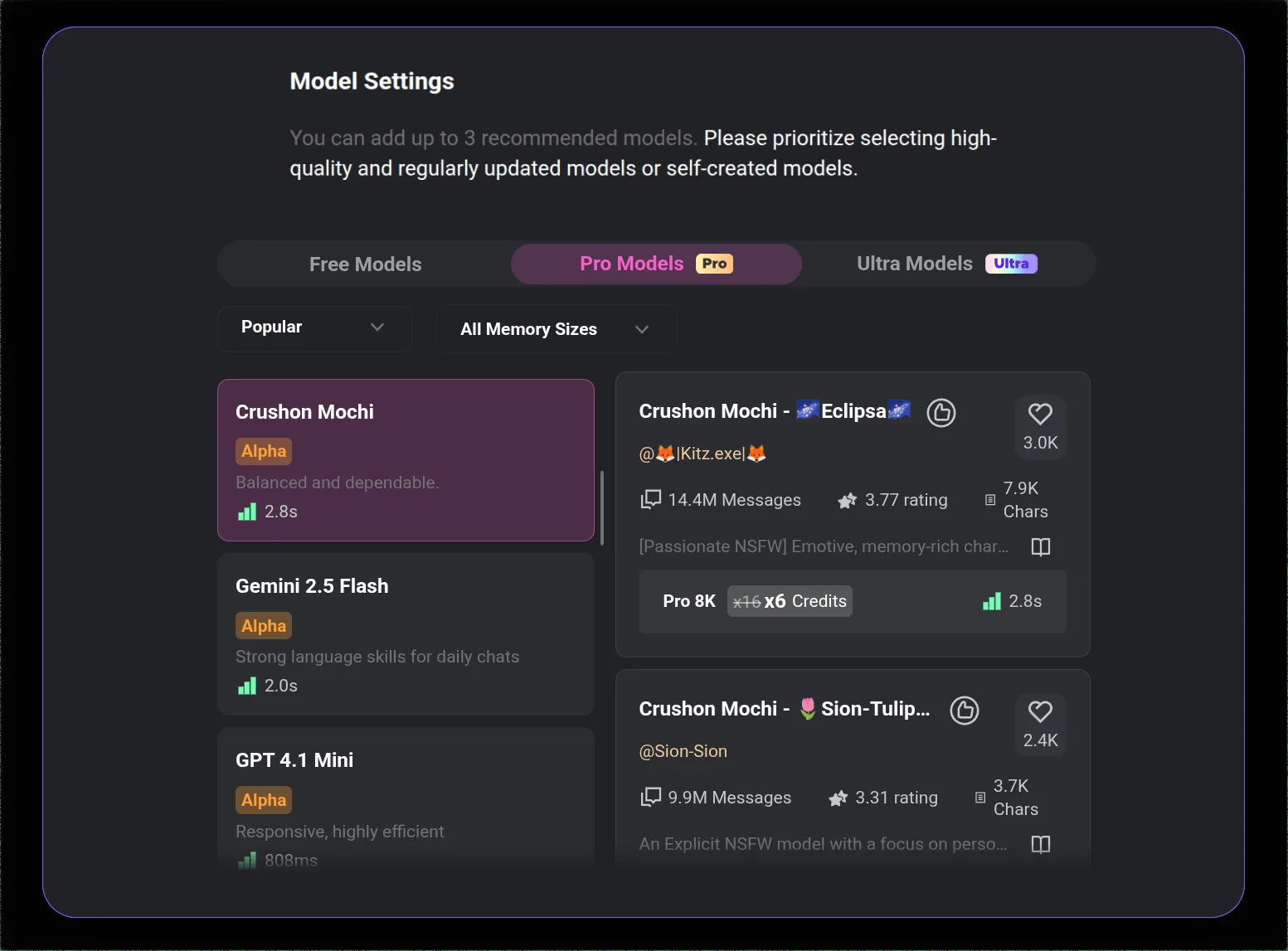
Chat Interface Loads But AI Doesn't Respond
Message limit is the most likely cause if platform status is normal. After confirming your limit has not been reached:
- Hard-refresh the page (Ctrl+Shift+R on Windows/Linux, Cmd+Shift+R on Mac)
- Clear browser cache and cookies for crushon.ai (browser settings → privacy → clear site data)
- Log out, close browser entirely, reopen and log in again
- Try a different browser (Chrome, Firefox, Safari, Edge) to isolate browser-specific issues
Slow Response Times
AI generation speed depends on server load. Evening hours US time produce peak load and slowest responses. This is normal behavior — not a malfunction. Refresh and try again at a less congested time if speed is critical.
Character Responses Seem Wrong or Broken
If the AI is responding but ignoring the character's persona: this is often a model quality issue rather than a platform bug. The default free model has weak instruction-following. MythoMax (Standard) and Claude 3.5 Sonnet (Premium) adhere to character instructions more reliably. If on a paid tier and still seeing broken character behavior, the persona field may have internal contradictions — review it.
Login Problems
Password Not Working
Click Forgot password on the login screen. Enter your registered email. Reset link arrives within 5 minutes — check spam folder. If no email arrives: try the alternate email you may have used, ensure you are not filtering by "expected" address.
Login With Google/Apple Not Working
Google and Apple SSO accounts are separate from email/password accounts. If you registered via Google login, always use Google login — not email/password. If the social login fails: check that the associated Google/Apple account is accessible and not expired.
Account Suspended or Restricted
If you receive a restriction notice, contact CrushOn AI support for information on the specific cause. Common reasons include content policy violations or payment disputes.
Image Generation Problems
Images not appearing: Check remaining image allocation in account settings. If exhausted for the month, no images generate until cycle reset.
NSFW images blocked: Requires Standard+ subscription AND completed 18+ verification in account settings. Verify both are in place. Contact support if both conditions are met and access remains blocked.
Images appearing blank or corrupted: Reload page / restart app. Clear browser cache. If persistent across multiple sessions, report to support with the affected conversation link.
Quality below expectation: Standard tier generates standard-resolution images. HD requires Premium or Deluxe. Add more descriptive detail to prompts — vague descriptions produce inconsistent output.
After Subscription Upgrade — Features Still Locked
Subscription activation usually applies within minutes. If features are missing:
- Log out and log back in (forces session refresh with updated plan data)
- Clear browser cache (old cached pages may show old plan)
- Wait 15-30 minutes — occasional processing delays occur
- Verify the payment processed (check email for confirmation, check card statement)
- Contact support with payment receipt if still unresolved after 30 minutes
Mobile App Issues
Android app crashes: Update via Google Play. If crash persists after update: uninstall, restart device, reinstall. Check that your device meets the minimum spec (Android 7.0+, 2GB RAM).
App not in Play Store: Use the web version at crushon.ai — full feature parity, no installation required.
Logged out repeatedly on Android: Battery optimization may be killing the app process and clearing session tokens. Settings → Battery → optimize/restrict → CrushOn AI → set to unrestricted.
iOS access: Native App Store app availability is regionally limited. Use crushon.ai in Safari. Add to Home Screen for a launch icon (Safari share button → "Add to Home Screen").
Ready to try CrushOn AI?
Visit CrushOn AIContacting Support
When self-help does not resolve the issue:
- In-app help: Settings → Help or FAQ
- Discord: CrushOn AI official Discord — faster community and staff responses
- Contact form: crushon.ai/contact or via account settings
Include: your account email, subscription tier, platform used, description of the issue, steps to reproduce, and any error messages displayed. Screenshots or screen recording expedite resolution for visual issues.
See our pricing guide for plan information and our complete review for platform overview.
Frequently Asked Questions
CrushOn AI may archive or clear older conversation history based on internal storage policies. Free tier conversations have less persistent storage than paid tiers. If specific conversation content is important, export or screenshot it rather than relying on server-side storage.
Feature rollouts sometimes reach web before mobile app, or vice versa. Update the app to the current version via Play Store. If a feature works on web but not app after updating, report it to support as a platform inconsistency.
Contact CrushOn AI support immediately with your cancellation confirmation (email or screenshot). If the charge appeared after a confirmed cancellation, also contact your card issuer to document the dispute. Retain all cancellation evidence.